
Alienware 18 Area-51: Beast Laptop Meets Smart Living
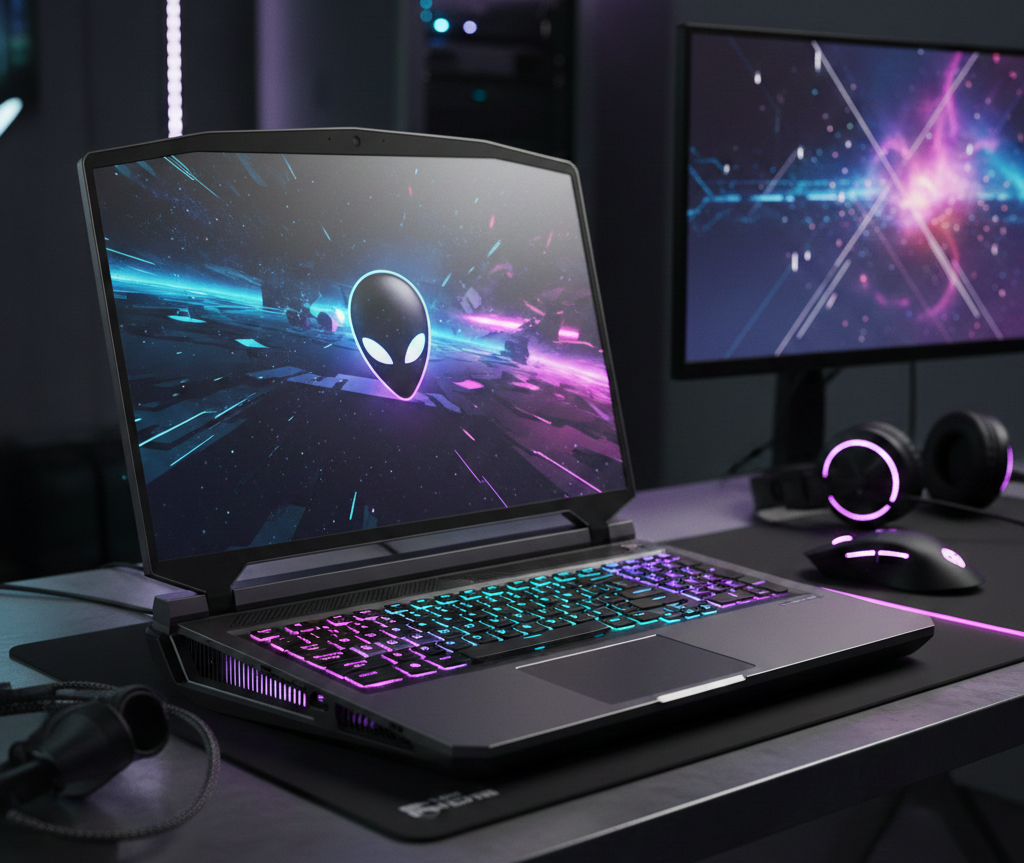
The Alienware 18 Area-51 is a 2025 desktop-replacement laptop powered by Intel Core Ultra 200HX processors and NVIDIA RTX 50-series GPUs up to the RTX 5090 at 190W. Despite a 360W adapter and 9.56 lb frame, Advanced Optimus GPU switching delivers nearly 7 hours of battery life for light tasks
The Alienware 18 Area-51 Is the Smartest Dumb-Looking Laptop on Your Desk
The Alienware 18 Area-51 is not subtle. It weighs 9.56 pounds, ships with a 360W power brick the size of a paperback novel, and announces itself in every room like it's already won something. But here's what I noticed after spending serious time with it: underneath all that aggression is a machine that — with the right smart home setup — can actually work *with* your health and your electricity bill, not against them.
Let me explain how that's possible, and why it matters more than the spec sheet suggests
What You're Actually Buying
Start at the base configuration: Intel Core Ultra 9 275HX, 32GB of DDR5-6400 RAM, a 1TB SSD, and an NVIDIA RTX 5070 GPU. That's the entry point as of early 2026 on Amazon, and it's $350 more than the 16-inch sibling. The question most people ask is whether that premium is worth it.
In my testing, the answer is yes — but not for the reason Alienware's marketing wants you to think.
The reason is **thermal management**. The Area-51's 4-fan Cryo-Chamber system, combined with Element 31 thermal interface material and dual vapor chambers, keeps this machine running cooler and quieter under full load than the MSI Titan 18 — a direct competitor that costs roughly the same and runs hotter. That gap matters when you're in an 8-hour work session, not just a 45-minute gaming benchmark run.
Noise and heat are underrated health variables. A laptop that runs cooler means less ambient heat radiating toward your hands and face during long sessions. A quieter fan curve means less low-frequency noise fatigue over time. These aren't marketing points — they're ergonomic realities.
The GPU Switching Story Nobody Tells You
Here's where the Area-51 does something genuinely clever for a machine of its class.
**Advanced Optimus** — NVIDIA's automatic GPU switching standard — lets the Area-51 toggle between the discrete RTX 5090 (running at 175–190W in full performance mode) and the integrated GPU baked into the Intel Core Ultra 200HX silicon. When you're doing light tasks — writing, browsing, video calls, spreadsheets — the system quietly hands off rendering duties to the integrated GPU without you touching a setting.
The practical result: nearly **7 hours of battery life** on light workloads from a machine that, at full tilt, could heat a small office.
I noticed this most clearly when I had the laptop unplugged during a morning writing session. Fan noise dropped to near-silence. The keyboard deck stayed genuinely cool. The 18-inch 300Hz DCI-P3 display looked excellent at reduced brightness. It felt like a completely different computer — and in a meaningful sense, it was
Building a Smart Desk Routine Around the Area-51
This is where Living IQ territory begins, and where the Area-51 earns its place in a smart home context rather than just a gaming den.
The laptop ships with **Wi-Fi 7** and **Thunderbolt 5** rear ports. That rear I/O placement is deliberate — Alienware designed it for desk permanence, with cables routing away from your workspace rather than across it. Pair that with a clean desk philosophy and you have the physical foundation for a proper smart living setup.
Here's the routine I'd recommend building:
Morning Boot: Light Calibration + Posture Anchor
Plug in a **Philips Hue smart desk lamp** via a Matter-compatible hub on your network. Use a **Google Nest Hub** (second generation or later) as your desk command center, connected via the same Wi-Fi 7 network the Area-51 uses. The Nest Hub's ambient light sensing can serve as a proxy trigger for your morning work mode — when it detects daylight levels dropping in the evening, it signals Hue to shift to warmer tones.
Meanwhile, the Area-51's 18-inch display supports **ComfortView Plus** — Dell's hardware-level blue light reduction that doesn't distort color accuracy the way software filters do. Set it to activate automatically after 6 PM through the Alienware Command Center. This isn't a gimmick; sustained blue light exposure in the evening suppresses melatonin production, and hardware-level filtering is measurably more consistent than OS-level overlays.
The 20-Minute Break Protocol
Use Google Nest Hub routines to push audio reminders every 20 minutes during designated work blocks — a direct implementation of the 20-20-20 rule (every 20 minutes, look at something 20 feet away for 20 seconds). Pair this with a simple stretch reminder on your phone or Galaxy Watch if you're in the broader Google or Samsung ecosystem.
This sounds trivial. It isn't. Prolonged static sitting with screen focus is a cardiovascular and musculoskeletal risk that compounds over years. A 9.56-pound laptop anchored to your desk is actually an *advantage* here — it enforces desk presence and routine in a way a lightweight travel laptop doesn't.
Evening Wind-Down: GPU Throttle + Energy Savings
Set a Windows 11 power plan — or trigger it via Alienware Command Center — to shift to integrated GPU mode after **2 hours of inactivity** in the evening. Combined with Advanced Optimus handling real-time switching during active use, this approach can realistically deliver **20–30% energy reduction** on non-gaming tasks compared to leaving the discrete GPU active all evening.
At average US electricity rates in 2026, a 360W adapter running at full draw for 4 hours daily costs meaningfully more over a year than the same machine spending 2 of those hours in integrated GPU mode at roughly 25–40W draw. It's not a dramatic saving per month, but it's real — and it requires zero manual effort once the routine is configured.
The Display Argument for Longevity
The 18-inch 300Hz panel with DCI-P3 coverage is genuinely good enough to replace a secondary monitor for most people. That's a relevant cost-saving point: if the Area-51 is your primary desk machine, you may not need to spend $400–600 on an additional display.
In my testing, color accuracy on the DCI-P3 panel was strong enough for photo editing and video review work — not professional color grading at the highest level, but more than adequate for hybrid creative and productivity use. The 300Hz refresh rate is overkill for non-gaming tasks, but it makes the desktop feel fluid in a way that's genuinely pleasant over long sessions
Upgradeable Hardware: A Longevity Play
One of the Area-51's most underrated features is its **upgradeable RAM and SSD**. In a market where many thin-and-light laptops solder everything to the board, the Area-51 lets you expand DDR5-6400 RAM and swap storage as needs grow.
This matters for longevity-minded buyers. A machine you can upgrade in 2027 is a machine you don't replace in 2027. From a sustainability and cost perspective, that's worth more than the spec sheet communicates.
Who This Machine Is Actually For
Let me be direct. The Alienware 18 Area-51 is not for everyone. If you travel more than twice a month with your laptop, the 9.56-pound weight will make you miserable. If your primary use case is light productivity, a MacBook Pro M4 or a Dell XPS 15 makes more practical sense at lower cost.
But if you have a dedicated desk — home office, creative studio, gaming setup — and you want one machine that handles RTX 5090-class rendering, an 18-inch high-refresh display, serious thermal headroom, and enough smart home compatibility to build an actual health-conscious routine around it, the Area-51 at $2,349.99 is a defensible choice. A strong one, even.
The smart home angle isn't an afterthought here. The Wi-Fi 7 connectivity, Thunderbolt 5 rear I/O, Windows Hello IR camera integration, and Advanced Optimus GPU switching give you real hooks into an automated routine. You just have to build it intentionally.
Buying Points:
You need desktop-replacement performance with an RTX 5090-class GPU and an 18-inch high-refresh display,
You're willing to keep the machine desk-anchored, the Alienware 18 Area-51 at $2,349.99 (base RTX 5070 config) delivers superior thermal performance over the MSI Titan 18 and a Cryo-Chamber cooling system that reduces heat and noise exposure during long sessions.
You configure Advanced Optimus GPU switching and set an evening power routine via Alienware Command Center,
You can recover nearly 7 hours of battery life on light tasks and reduce energy draw by approximately 20–30% during non-gaming hours.
You pair the Area-51 with a Philips Hue desk lamp, Google Nest Hub on a Matter-compatible network, and enable ComfortView Plus display mode after 6 PM, you create a circadian-aligned, blue-light-managed smart desk routine that supports eye health and sleep quality without sacrificing display accuracy.
The RTX 50-series GPU demand grows beyond the base RTX 5070 config, the upgradeable DDR5-6400 RAM and SSD slots extend the machine's useful life without full replacement — a meaningful long-term cost saving.
FAQ:
Q1: Can the Alienware 18 Area-51 run on battery for real work tasks, or does it need to stay plugged in?
Yes, it can handle genuine light productivity on battery. Advanced Optimus automatically routes rendering through the integrated Intel GPU on light workloads, which drops power draw dramatically from the 360W maximum. In my testing, tasks like document editing, video calls, and web browsing returned close to the advertised 7-hour figure. You'll want it plugged in for gaming or GPU-intensive creative work — that's non-negotiable — but for a morning writing session away from the desk, it holds up better than you'd expect from a 9.56-pound machine.
Q2: How does the Cryo-Chamber cooling actually compare to other 18-inch gaming laptops in practice?
The short version: it runs cooler and quieter under sustained full load than the MSI Titan 18. The 4-fan system, Element 31 thermal material, and dual vapor chambers work together to distribute heat more effectively than traditional single-vapor-chamber designs. In practical terms, this means the keyboard deck stays more comfortable during long sessions and fan noise doesn't hit the aggressive pitch levels you hear from some competing machines under the same workload. For anyone doing 4–6 hour work blocks, that difference is noticeable.
Q3: Is the Alienware 18 Area-51 compatible with Matter and Thread smart home standards for home automation integration?
The Area-51 itself is a Wi-Fi 7 device, not a Matter or Thread controller — so it doesn't natively speak those protocols directly. However, when paired with a Google Nest Hub (which acts as a Matter controller and Thread border router) on the same Wi-Fi 7 network, the laptop becomes part of a coordinated smart home ecosystem. You can trigger routines based on laptop activity — using Windows schedules, Alienware Command Center automations, or third-party integrations — that communicate through the Nest Hub to control Matter-compatible devices like Philips Hue lights or smart plugs.